


ICC profile
An ICC profile (International Color Consortium Profile) is a data file that defines the unique color characteristics of devices such as monitors, printers, and cameras, or of a color space, and enables color conversion. BandiView uses ICC profiles to display photos closer to the colors intended when they were captured or edited. This is especially useful on wide-gamut or calibrated monitors with a matching monitor profile.

Choose a mode in Configuration
Open Configuration > Image Processing to choose how ICC profiles are processed. The help button beside this setting opens this page.
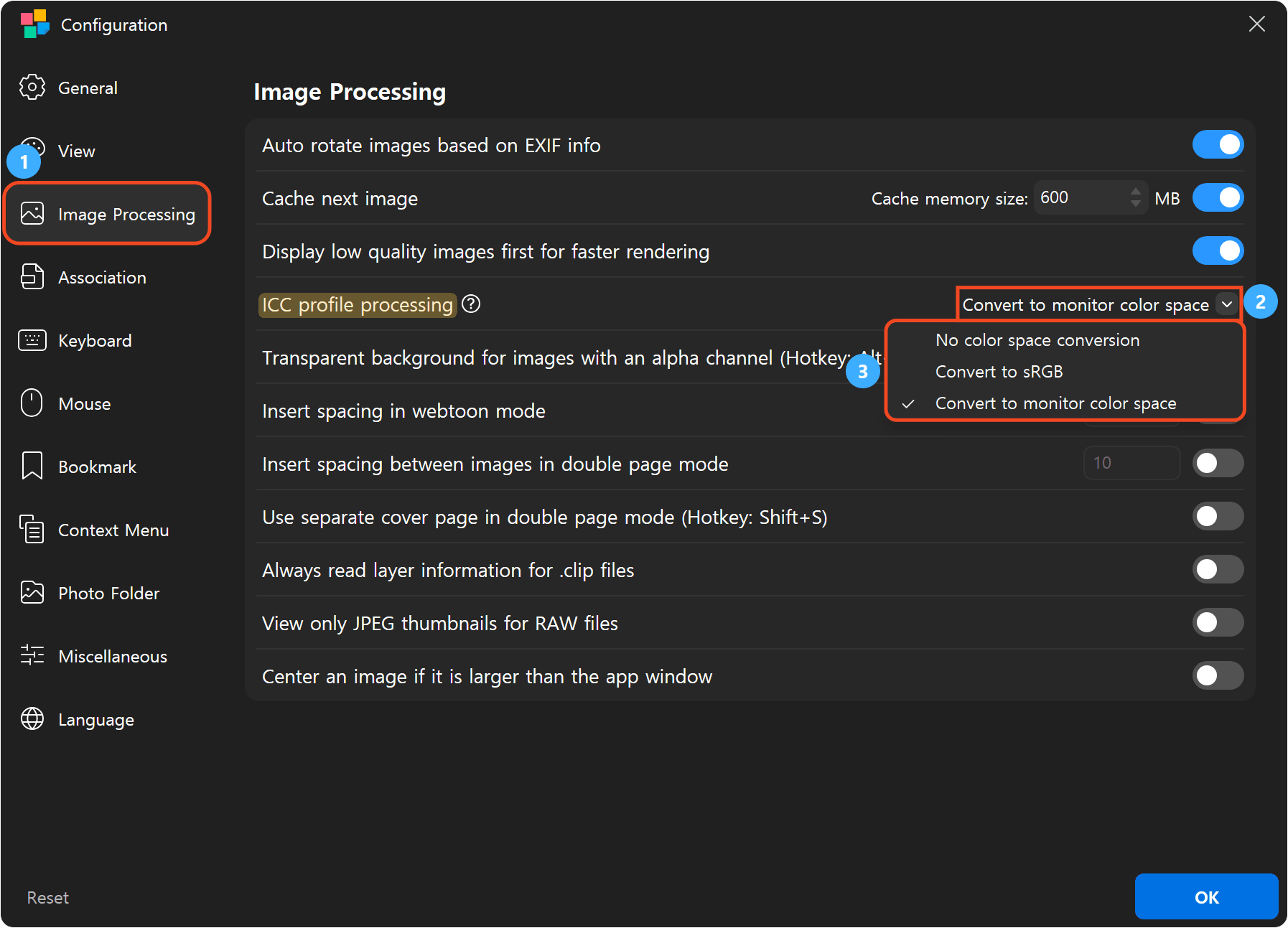
- Open Configuration and select Image Processing.
- Open the menu beside ICC profile processing.
- Select the processing mode you want to use.
ICC profile processing options
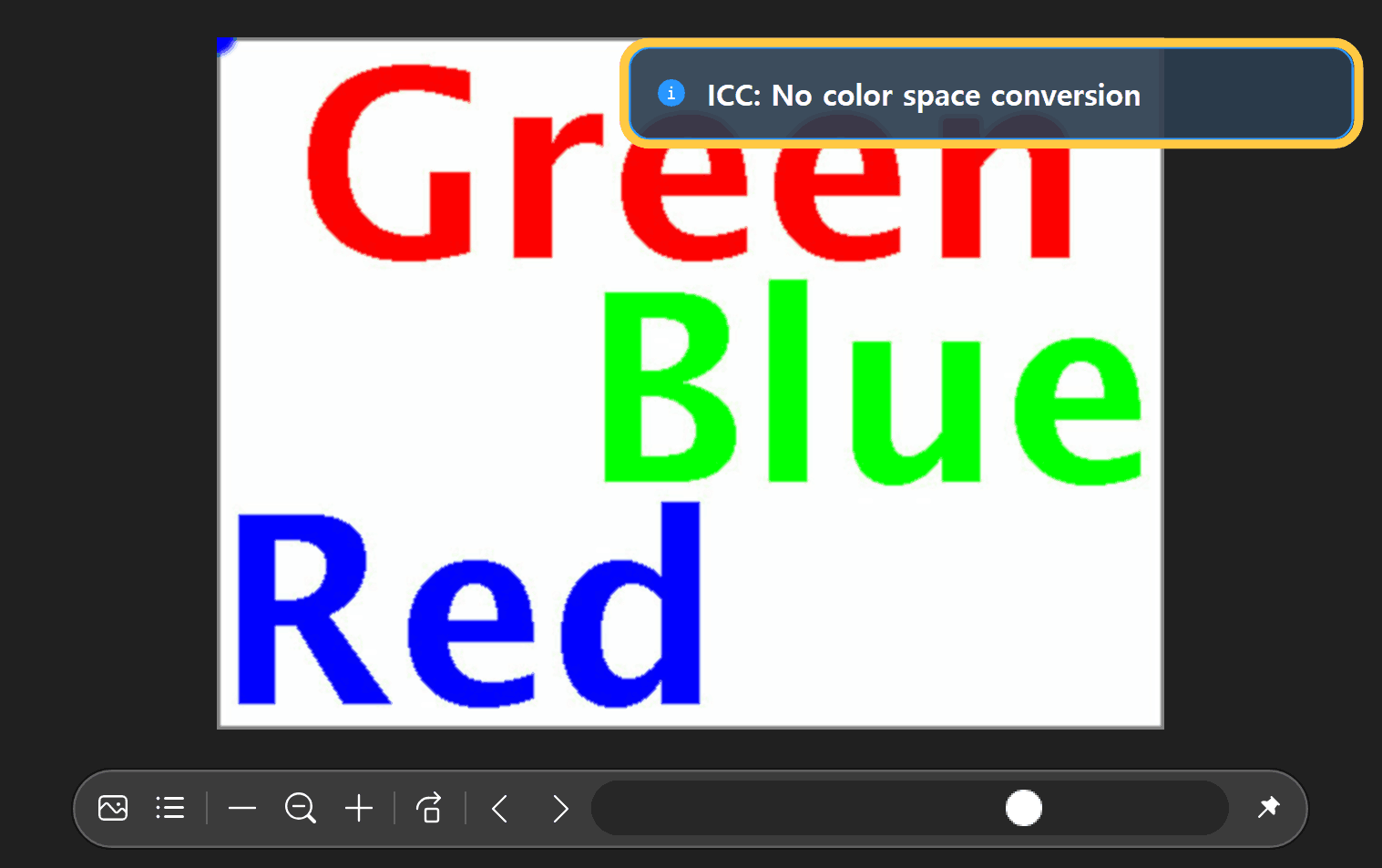
No color space conversion
Turns off color conversion using ICC profiles. Use this mode to compare how an image looks with and without color conversion.
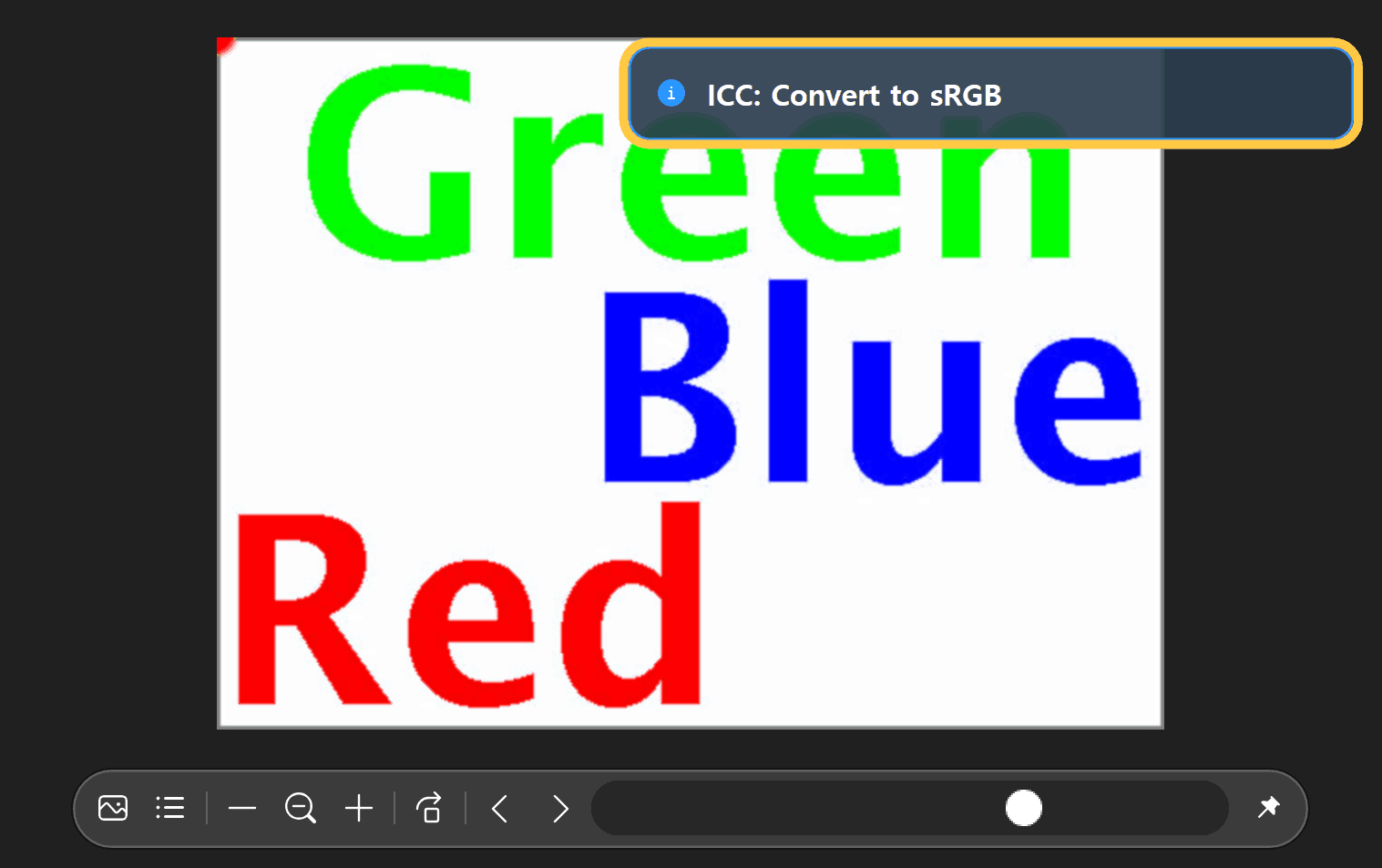
Convert to sRGB
Reads the color information in a photo and displays it using sRGB, a standard widely used for web images and ordinary photos. This mode does not use a custom monitor ICC profile.
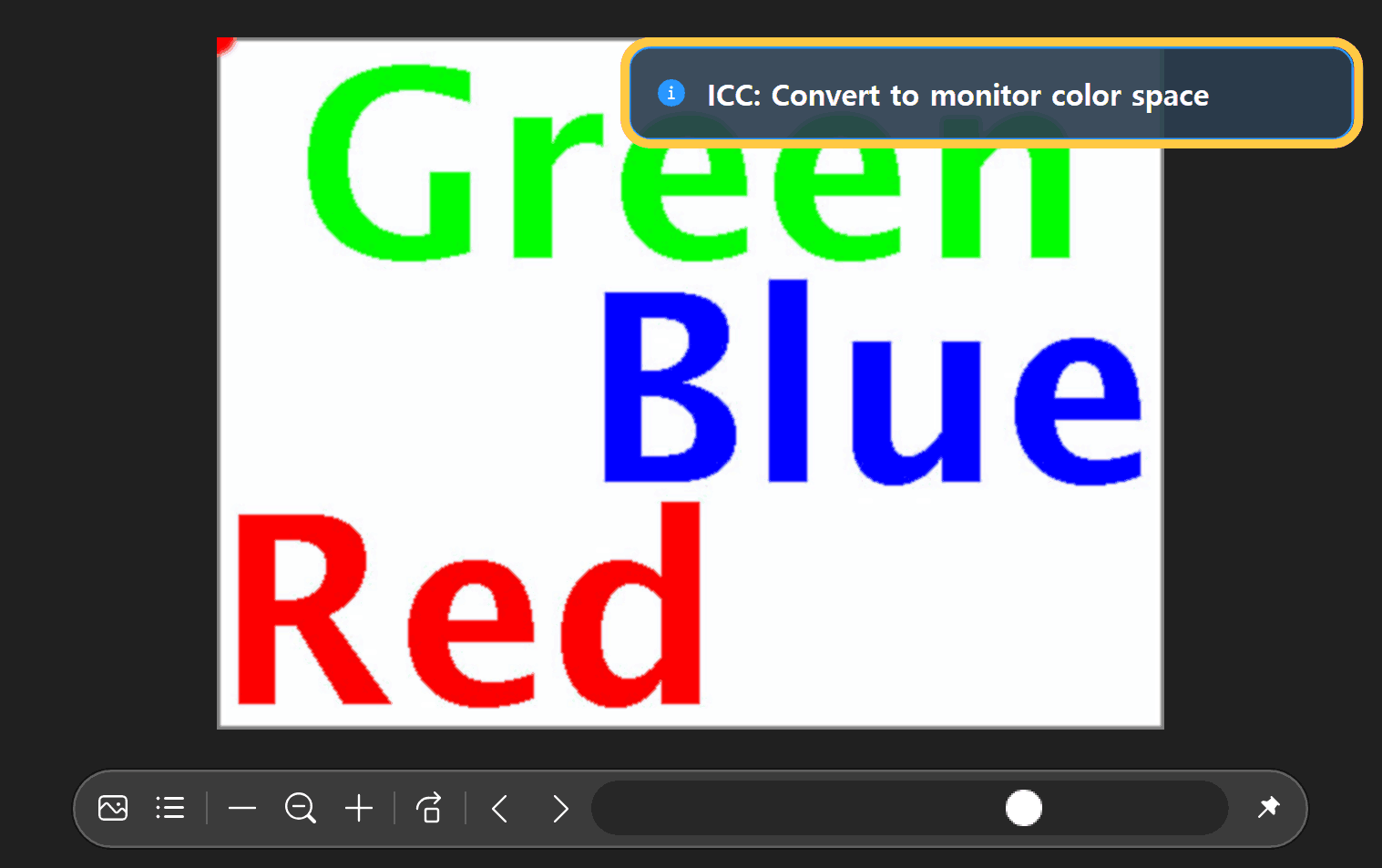
Convert to monitor color space (default)
Uses the color information in a photo together with the monitor profile set in Windows to display colors suited to your current monitor. Choose this mode when a matching profile is set up for your monitor.
Switch modes with a shortcut
No default shortcut is assigned. Follow the steps below to register a key combination. Ctrl+N in the screenshots is a user-assigned example.
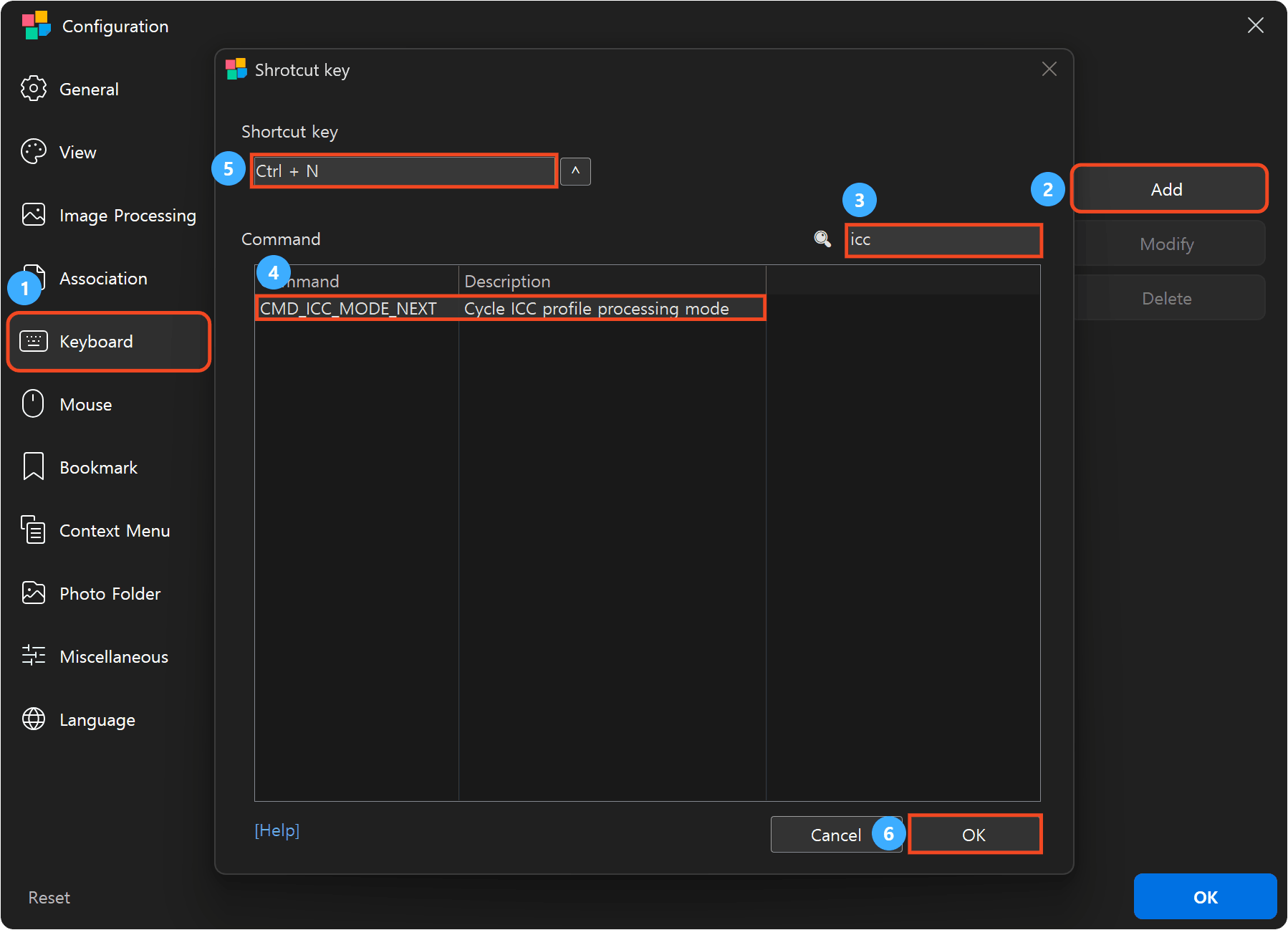
- Select Keyboard in Configuration.
- Click Add to open the Shortcut key dialog.
- Enter icc in the search box.
- Select Cycle ICC profile processing mode.
CMD_ICC_MODE_NEXT - Press your preferred key combination in the Shortcut key field. Choose one that does not conflict with another command.
- Click OK in the Shortcut key dialog.
Check that the command and shortcut appear in the list and that Enabled is checked, then click OK in Configuration.
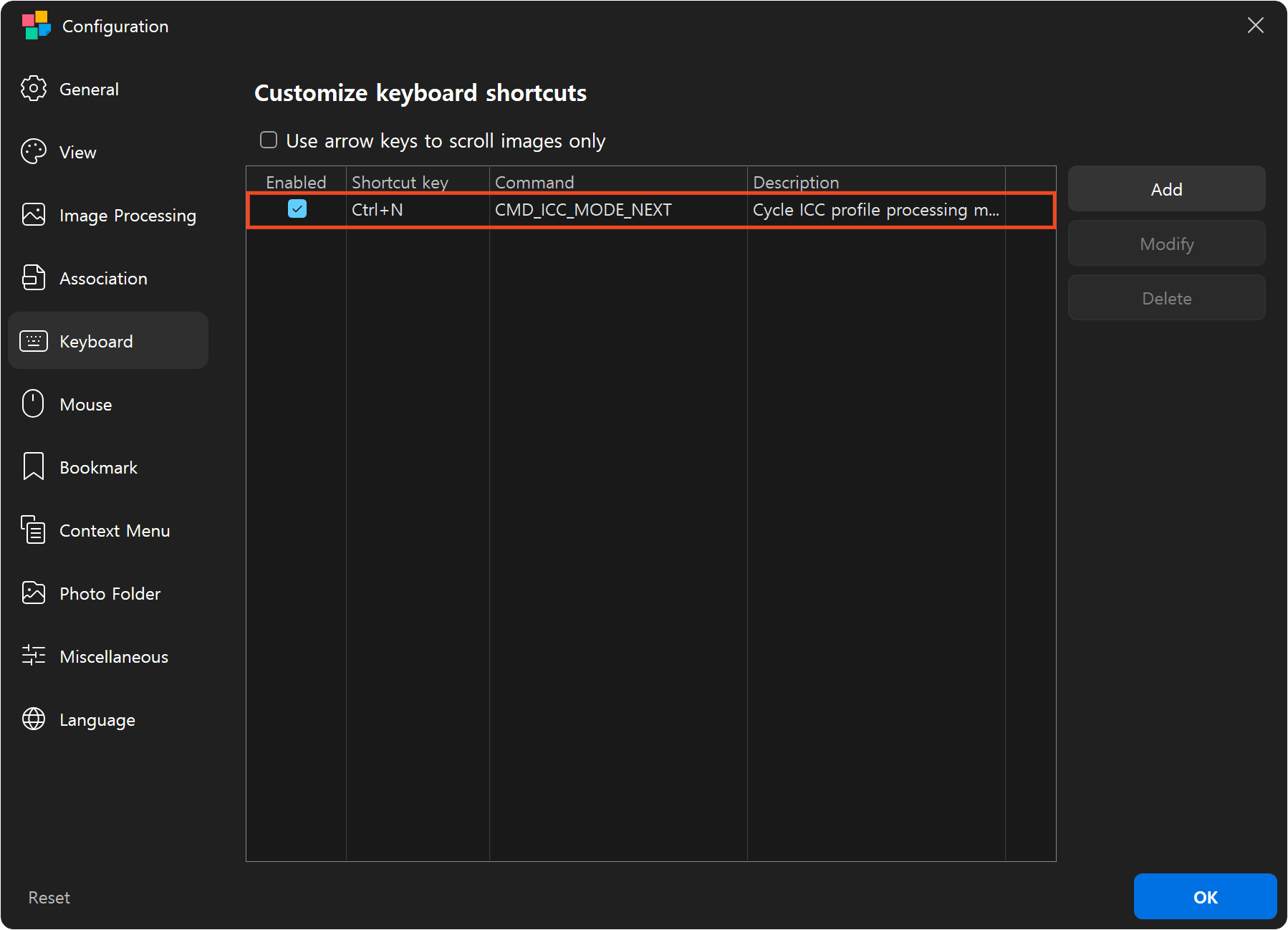
Each press cycles through No color space conversion, Convert to sRGB, and Convert to monitor color space, then returns to the first mode. The current image is updated without restarting BandiView. If on-screen messages are enabled, the selected mode appears briefly.
Things to know
- For ordinary photos without an ICC profile, BandiView uses the widely used sRGB standard as the starting point.
- If no usable monitor profile is available, BandiView displays colors using sRGB. In this case, the result may look the same as Convert to sRGB.
- With HDR enabled, Windows color management also affects the result, so switching modes may make little or no visible difference.
- The monitor profile may not apply to some animated images.
Frequently asked questions
Which mode should I use for game screenshots?
If a screenshot looks different from the game, compare it using No color space conversion. Results depend on the game, capture method, and HDR settings, so no single mode suits every game screenshot.
Does switching modes change the image file?
No. Only the colors displayed on screen change. The original photo stays unchanged.