


Photo Folder
Photo Folder in BandiView lets you copy or move the image file you are viewing to a preset folder. Use it to copy images to a folder of your choice or organize them by purpose.
Where is Photo Folder?
Click "Copy to" at the top right of the window to open the Photo Folder panel. Press Alt + P to open or close it.
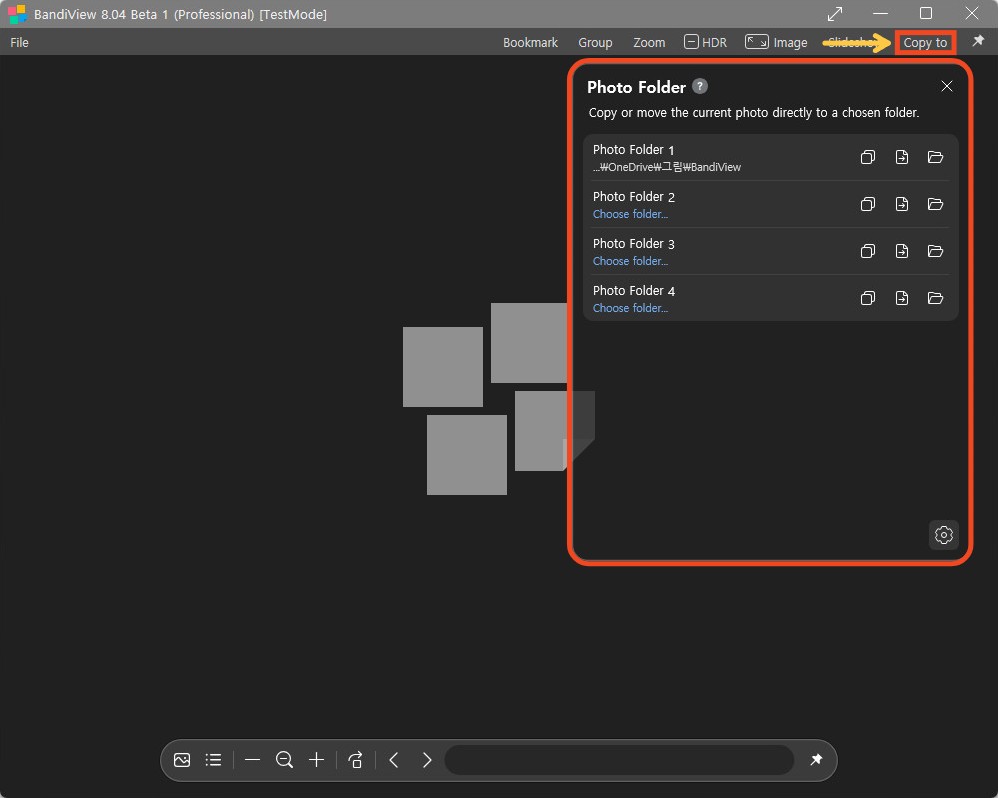
Photo Folder panel controls
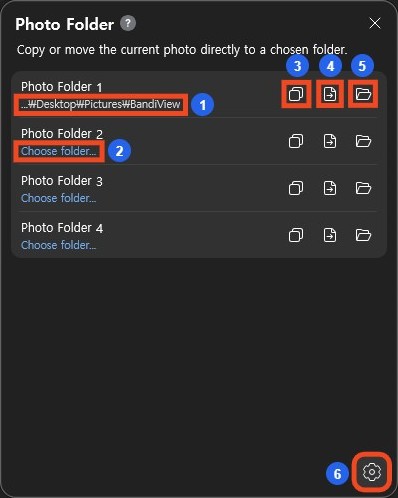
- Destination path: Shows the folder assigned to this photo folder. Long paths are shortened; hover over the path to see it in full.
- "Choose folder...": No destination has been assigned. Click to select a folder.
- "Copy": Copy the current photo file to the destination folder and keep the original in its current location.
- "Move": Move the current photo file to the destination folder. After a successful move, the file is no longer in its original location.
- "Open folder": Open the destination folder in File Explorer.
- "Settings": Assign or change destinations and adjust the number and order of photo folders.
Set up destination folders
You can use a minimum of 1 and a maximum of 20 photo folders. Initially, 4 are shown. By default, folder 1 uses the BandiView folder inside your Pictures folder, typically "C:\Users\YourName\Pictures\BandiView". The location may differ if you moved Pictures or linked it to OneDrive. Check the path shown in the panel for your actual destination.
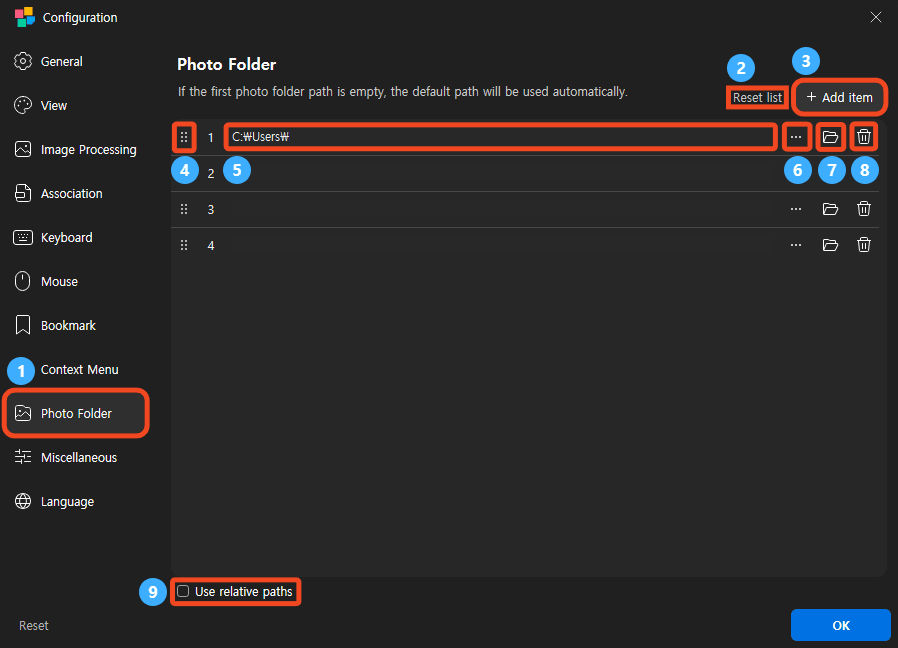
- "Photo Folder": Select this tab on the left side of "Configuration".
- "Reset list": Restore the default list of 4 photo folders and their default paths. Stored photos are not deleted.
- "Add item": Add another photo folder, up to a maximum of 20.
- Reorder: Drag the handle on the left of an entry up or down. Photo folder numbers follow the list order, so check the destinations used by copy and move shortcuts after reordering.
- Path field: Type or edit the destination folder path directly. Leaving the first photo folder empty restores its default path.
- Browse button ("..."): Select a destination in the folder selection dialog.
- Open button: Open the selected folder in File Explorer to check its location and contents.
- Delete button: Remove the entry from the list. At least 1 photo folder must remain. Photos stored in the destination folder are not deleted.
- "Use relative paths": Allow relative paths in the path field. See the examples below.
Using relative paths
Type a relative path such as "./B" or "../B" directly into the path field. It is resolved from the folder containing the current image.
- "./" means the current folder. Both "./B" and "B" refer to its "B" subfolder.
- "../" goes up one folder level; "../../" goes up two.
For example, when viewing "D:/A/photo.jpg", "./B" refers to "D:/A/B", while "../B" refers to "D:/B".
A full path such as "D:/B" is treated as an absolute path even when "Use relative paths" is checked. Its destination stays the same when you open an image in another folder.
Default keyboard shortcuts
For photo folders 1–9, press Alt + the folder number to copy, Ctrl + Alt + the folder number to move, or Alt + Shift + the folder number to open the destination. Add the photo folders you need and assign their destinations first. Alt + 0 is already used to turn off zoom, so photo folder 10 has no default shortcut using the 0 key.
| Action | Shortcut |
|---|---|
| Copy to photo folders 1–9 | Alt + 1~9 |
| Move to photo folders 1–9 | Ctrl + Alt + 1~9 |
| Open photo folders 1–9 | Alt + Shift + 1~9 |
| Open or close the Photo Folder panel | Alt + P |
The existing Insert shortcuts are also available. Insert copies to photo folder 1, and Ctrl + Insert moves to photo folder 1. Shift + Insert copies to folder 2, Alt + Insert to folder 3, and Alt + Shift + Insert to folder 4.
Check shortcut destinations after removing or reordering photo folders.
Add keyboard shortcuts
You can assign shortcuts to copy to, move to, or open photo folders 10–20.
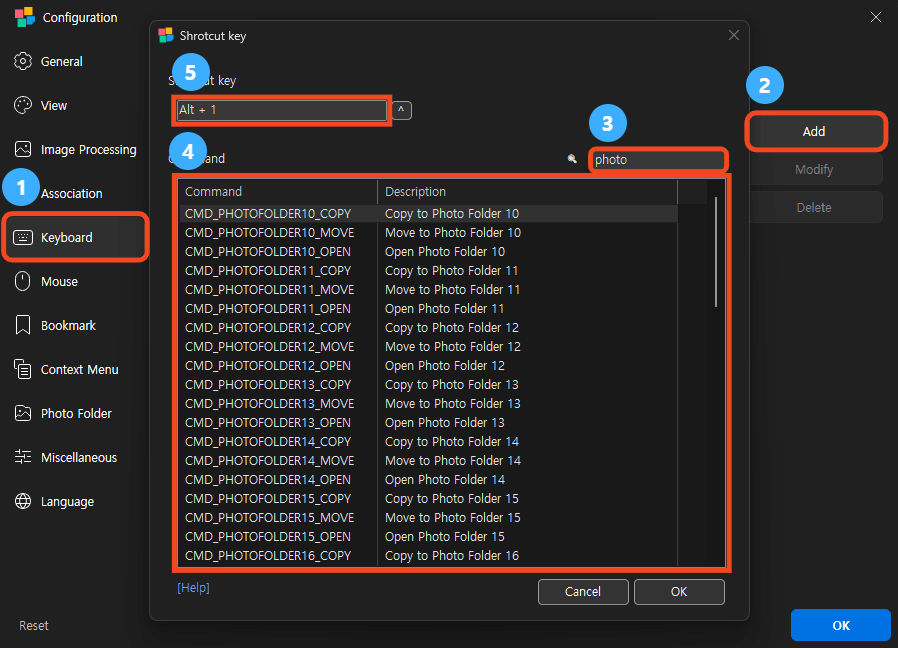
- "Keyboard": Press F5 to open "Configuration", then select this tab on the left.
- "Add": Click to open the "Shortcut key" dialog.
- Search: Enter "Photo" in the search field.
- Select a command: Check the photo folder number and action in "Description", then select a command. For example, choose "CMD_PHOTOFOLDER10_COPY" to copy to photo folder 10.
- Enter a shortcut: Click the "Shortcut key" field at the top and press the key combination you want to use.
Click "OK" in the "Shortcut key" dialog and make sure the new entry is enabled. Then click "OK" in "Configuration" to save your settings.
How to add, change, and delete keyboard shortcuts
Ways to organize your photos
- Copy to a folder of your choice: For example, set photo folder 1 to "D:/A" and press Alt + 1 to copy the current photo there while preserving the original.
- Sort by purpose: Add as many photo folders as you need for Print, Share, Edit, Reference, or other purposes, up to 20 in total. Use the appropriate folder’s "Copy" button or assigned shortcut as you review your photos.
- Organize original files: Use Move to transfer photos from a temporary sorting folder to their final folders. Try a few photos first to check the destination and result.
Frequently asked questions
Does changing a destination move photos already stored there?
No. Changing a folder setting only changes the destination for future copy or move operations. Photos in the previous destination remain there.
Does Photo Folder convert images?
No. Photo Folder copies or moves files; it does not convert their image format.
What if a file with the same name already exists?
If a different file with the same name exists, a confirmation dialog shows the current and destination images. You can overwrite the destination, save with a different name, or cancel. If the files are identified as identical, no confirmation dialog is shown.
Can I save photos from an archive?
Yes. Photos inside an archive are extracted to the destination folder. Even with the Move command, the original inside the archive is not deleted.
Can I copy RAW and JPG files together?
Use RAW/JPG grouping and its Photo Folder option to process grouped files together. See the RAW/JPG grouping guide below.